
1. Overview & core capabilities
NotifyForward is a local-first Android notification forwarder: it relays notifications, incoming SMS, and missed calls from a secondary phone to the device in your hand (Bark / Email / Webhook). Privacy-first — nothing you own is uploaded, no server, no account.
Notification forwarding
Captures selected app notifications and sends them to Bark / Email. Supports app filtering (allowlist/blocklist) so only what you care about is forwarded.
Incoming SMS capture
When enabled, incoming SMS is read from your SMS app's notification and forwarded to your Bark / Email / Webhook channels (body dedupe, sent exactly once). Off by default.
Missed calls
Alerts you to missed calls via the notification channel — no phone/call permission required, and repeated identical text still alerts separately. Off by default.
Who it's best for
- Two-phone users: work phone in the bag, personal phone in hand — client messages, bank codes, and family missed calls all land on the main phone.
- Backup & archive: forward important notifications / SMS to email for long-term retention.
2. Install & system requirements
System requirements
- Android 8.0 (API 26) or above (minSdk 26).
- Target / compile SDK: 36 (Android 16), compatible up to the latest system.
- Internet required for the Bark / Email / Webhook channels (Webhook may be a local LAN address).
How to install
- Google Play: search for
NotifyForwardin the Play Store and install (recommended, auto-updates). - Open the app after installation and go through the first-time setup flow (including the privacy-policy consent gate).
3. First-time permissions
Whether forwarding stays reliable depends on three system grants. Missing any of them causes "dropped forwards". Complete them in order:
3.0 Privacy-policy consent gate (first launch)
Before anything else, the app presents its privacy policy and requires your explicit consent. Nothing is forwarded, and no sensitive permission is requested, until you accept. This gate exists so you understand exactly what data the app can access and how it is handled before you grant anything.
3.1 Notification Access (Notification Listener)
- What it does: forwarding notifications and detecting missed calls both depend on it. Without it, the app receives nothing.
- How to grant: if the home screen shows a red "Permission required" bar → tap "Grant permission" → toggle on NotifyForward in the system "Notification access" list.
- How to verify: the home status card shows green "Service running"; or Settings → Notifications → Notification access → NotifyForward is enabled.
- Note: some brands auto-revoke this permission during "battery saving / cleanup" and you must re-enable it manually (see §10 device troubleshooting).
3.3 Battery optimization (must be disabled)
- Why: Android's Doze / vendor battery saver freezes background services, causing delayed or fully stopped forwarding.
- Action: open Settings → Tools → "Battery optimization" → set NotifyForward to "Unrestricted / Don't optimize" in the system battery settings.
- Verify: after setting, lock the screen for 10–30 minutes and have someone send a WeChat / SMS to confirm forwarding still works.
4. Home screen tour
The home screen brings together "is it working, what's forwarded, where to", so you can see everything at a glance:
| Area | Description |
|---|---|
| Status card | Shows "Permission required / Service stopped / Service running"; includes channel count, total forwards, and history count (tap history to view). |
| Forwarding channels | Bark / Email / Webhook entries, each tagged with "N enabled". |
| Forwarding scope | Event types: include SMS (off by default), include missed calls (off by default); App filtering: All / Allowlist / Blocklist + "Manage apps". |
| Quick actions | Test forward, general settings. |
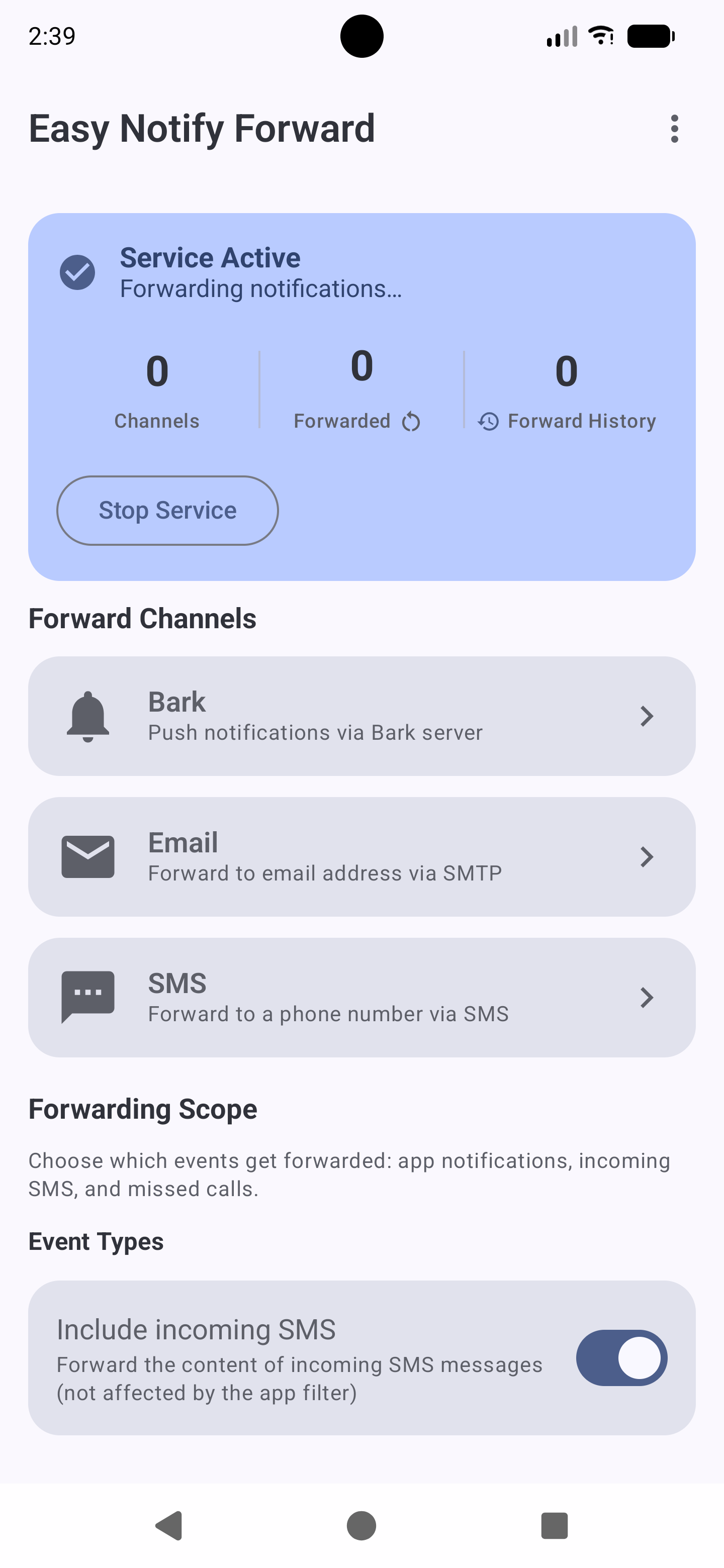
Status card, channels, quick actions.
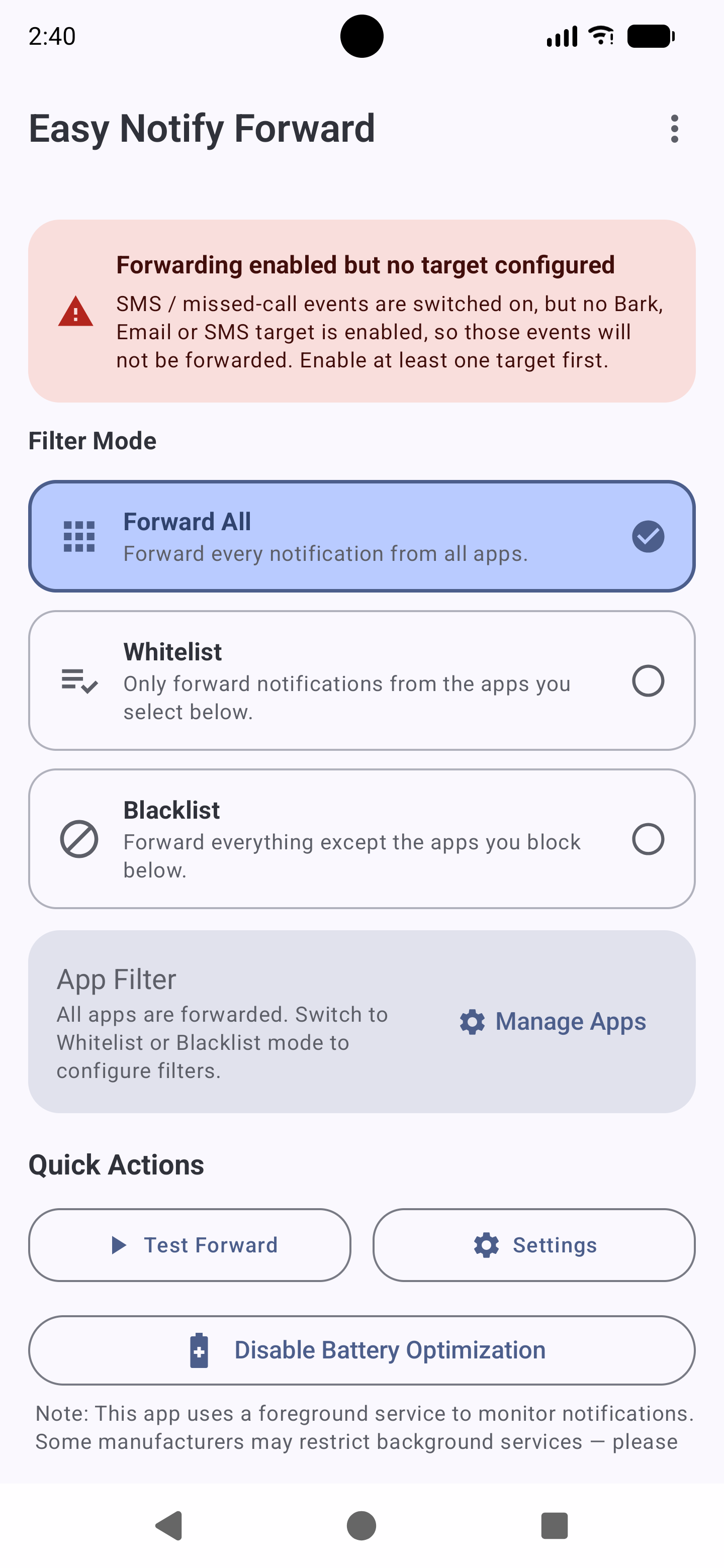
Forwarding scope: event-type toggles + app-filter mode.
5. Configure forwarding channels
Each channel can have multiple destinations, each with its own independent switch. With no usable destination, that event type is silently dropped (the home screen shows a yellow warning).
5.1 Bark (instant push to iPhone / iPad)
Server address
Such as https://api.day.app or a self-hosted address. Must include ://, otherwise it can't be saved / enabled.
Device key
The key for that device in the Bark app. Full push URL = server address / device key.
Push style
Title gets a [App name] prefix and is grouped by app, with the default sound. It no longer sends an iOS-unopenable deep link.
Self-hosting tip: deploy Finb/Bark yourself for full data control, matching the "local-first" philosophy.
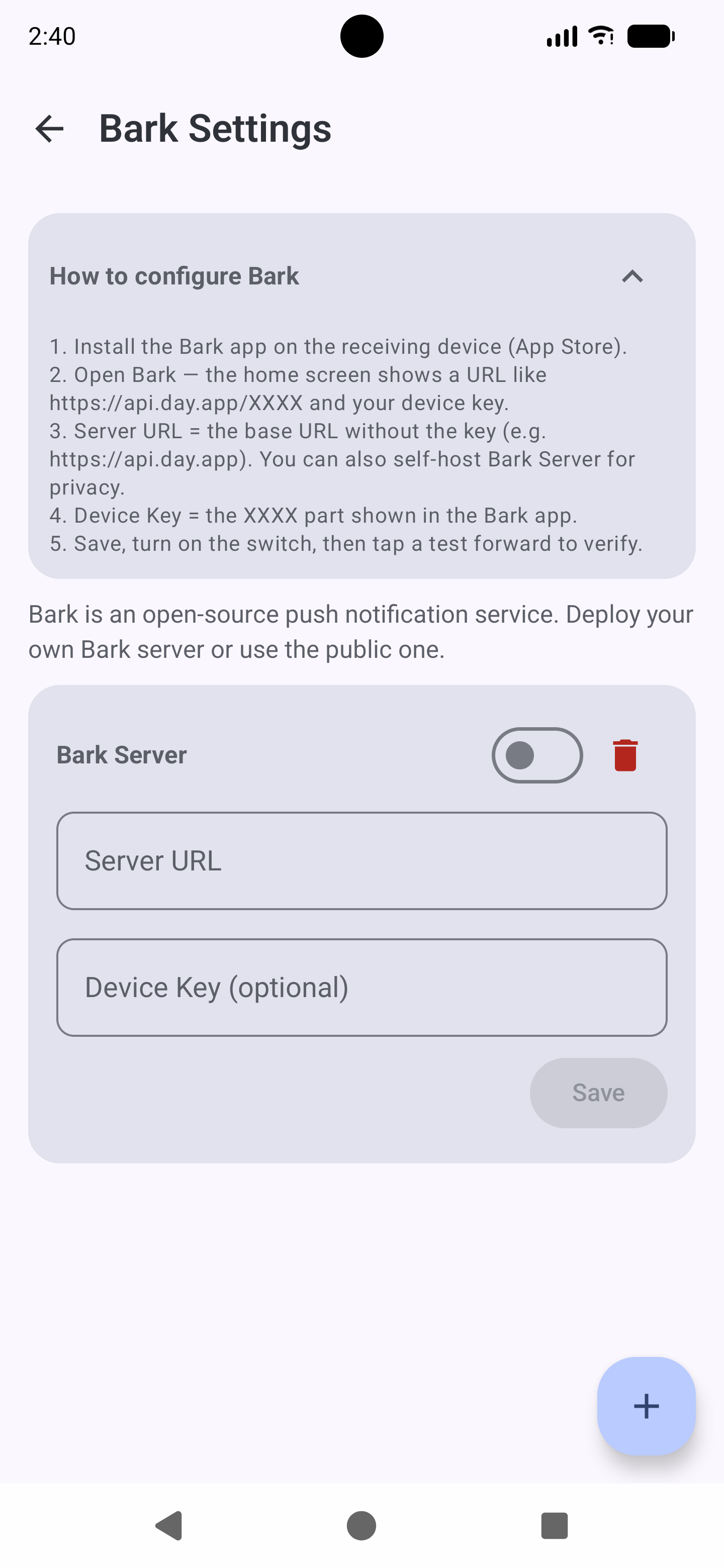
Server address, device key, and push style.
5.2 Email (SMTP, cross-platform archive)
Fields: SMTP host, port, transport security, sender account, sender password, recipient.
Transport security (choose one)
- AUTO (recommended): auto-decides by port — port
465→ SSL; others (e.g. 587 / 25) → STARTTLS. - SSL: force SSL (usually with 465).
- STARTTLS: force STARTTLS (usually with 587).
| Provider | SMTP host | Port | Security |
|---|---|---|---|
| QQ Mail | smtp.qq.com | 465 / 587 | SSL / STARTTLS |
| 163 Mail | smtp.163.com | 465 / 994 | SSL |
| Gmail | smtp.gmail.com | 465 / 587 | SSL / STARTTLS |
| Outlook | smtp.office365.com | 587 | STARTTLS |
- Password: most providers require an authorization code / app-specific password rather than the login password (especially QQ, 163).
- Connection test: each email destination has a "Test connection" button that does a real SMTP handshake + login verification.
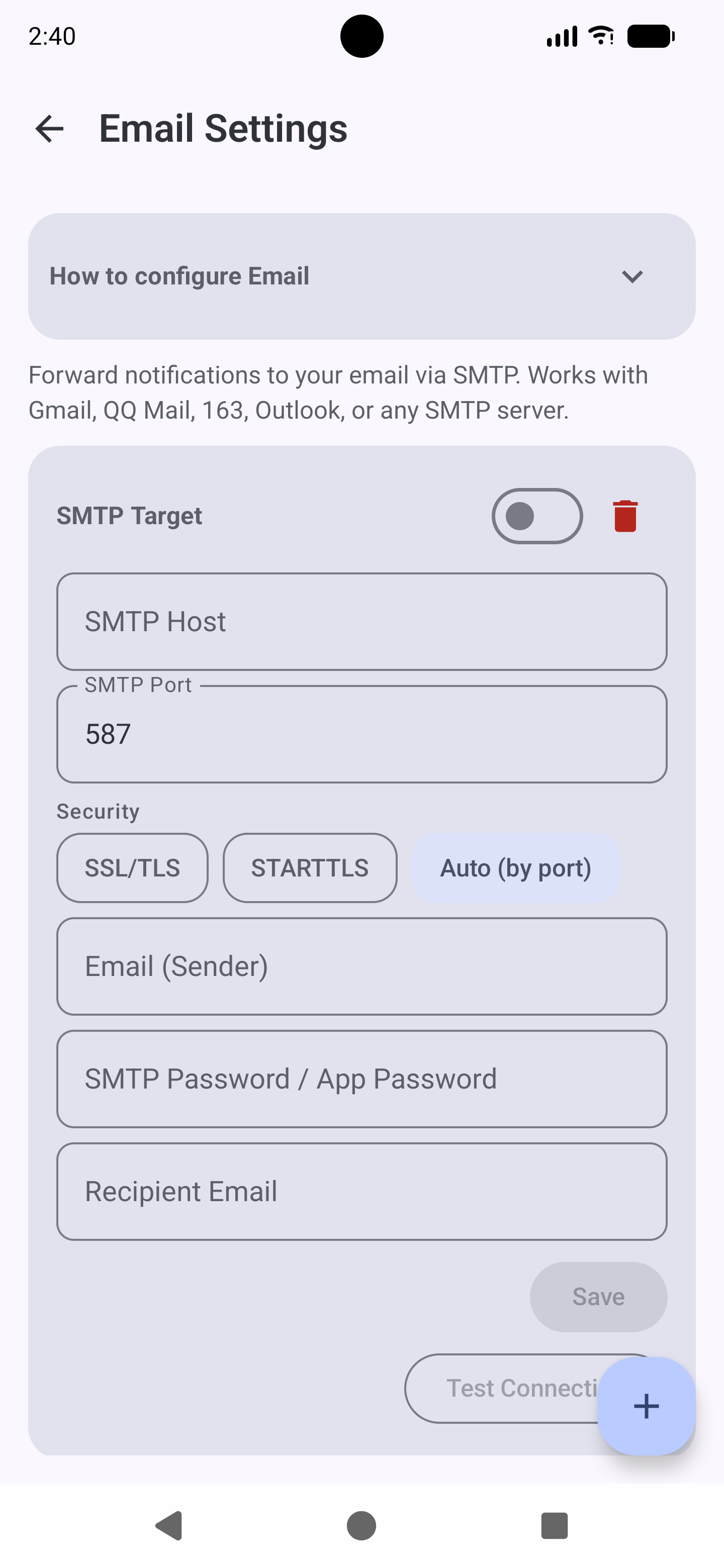
SMTP host / port, transport security, sender, recipient, and test.
5.4 Webhook (custom HTTP callback)
Reach any HTTP/HTTPS endpoint — a self-hosted service, Node-RED, Home Assistant, a Slack / WeCom / Feishu bot, and more. Each Webhook target is an independent destination with its own switch.
| Preset | What you fill in |
|---|---|
| Telegram | Bot Token + Chat ID |
| ntfy | Server (optional) + Topic + Token (optional) |
| Gotify | Server URL + App Token |
| Discord | Full Webhook URL |
| Slack | Full Webhook URL |
| WeCom | Bot Key |
| DingTalk | Access Token |
| Feishu | Bot Hook ID |
| CUSTOM | Everything manually (URL / Method / Headers / Body) |
URL
Any http:// or https:// address. Must be reachable from the phone; for LAN / self-signed servers you can toggle TLS-skip for that single target (see below).
Method
POST (default) sends a JSON body; GET puts the same fields in the query string. The field set is identical.
Bearer token (optional)
If set, sent as Authorization: Bearer <token>. Stored encrypted with Android Keystore (AES-256-GCM); never written in plaintext.
Skip TLS verification
Opt-in for a single target only (self-signed / LAN). Never global, and never weakens Bark / Email / Webhook. Other channels keep full certificate validation.
The webhook payload uses a fixed schema. For POST (default) it is sent as a JSON body with Content-Type: application/json; for GET the same fields are sent as URL query parameters. The fields are:
| Field | Type | Description |
|---|---|---|
eventId | string (UUID) | Unique id for this event. Reused across the send and its single retry, so your endpoint can dedupe. |
eventType | string | Event source, one of notification | sms | call | test (always lowercased). |
source | string | The originating app's display name (e.g. "WeChat"). |
packageName | string | The originating app's Android package name (e.g. com.tencent.mm). |
title | string | Notification / message title. |
text | string | Notification / message body text. |
timestamp | string | Event time as Unix epoch milliseconds (kept as a string). |
Example POST body (this is the exact JSON the app sends — verified end-to-end):
{
  "eventId": "269bf3a9-230e-426e-886c-eb6b41ae5250",
  "eventType": "notification",
  "source": "WeChat",
  "packageName": "com.tencent.mm",
  "title": "Zhang San",
  "text": "Dinner tonight?",
  "timestamp": "1786986467305"
}
Example GET URL (same fields, URL-encoded):
https://hook.example.com/inbox?eventId=269bf3a9-...&eventType=notification&source=WeChat&packageName=com.tencent.mm&title=...&text=...×tamp=1786986467305Request headers: Content-Type: application/json for POST (configurable per target). If a Bearer token is set it is sent as Authorization: Bearer <token>; any custom headers from the "Headers" box are also attached. When both a Bearer token and a custom Authorization header are present, the custom one is skipped to avoid sending two Authorization headers. Both http:// (LAN / self-hosted) and https:// endpoints are supported.
The stable eventId lets your endpoint dedupe. On failure the request is retried once (2 attempts total), then recorded in history.
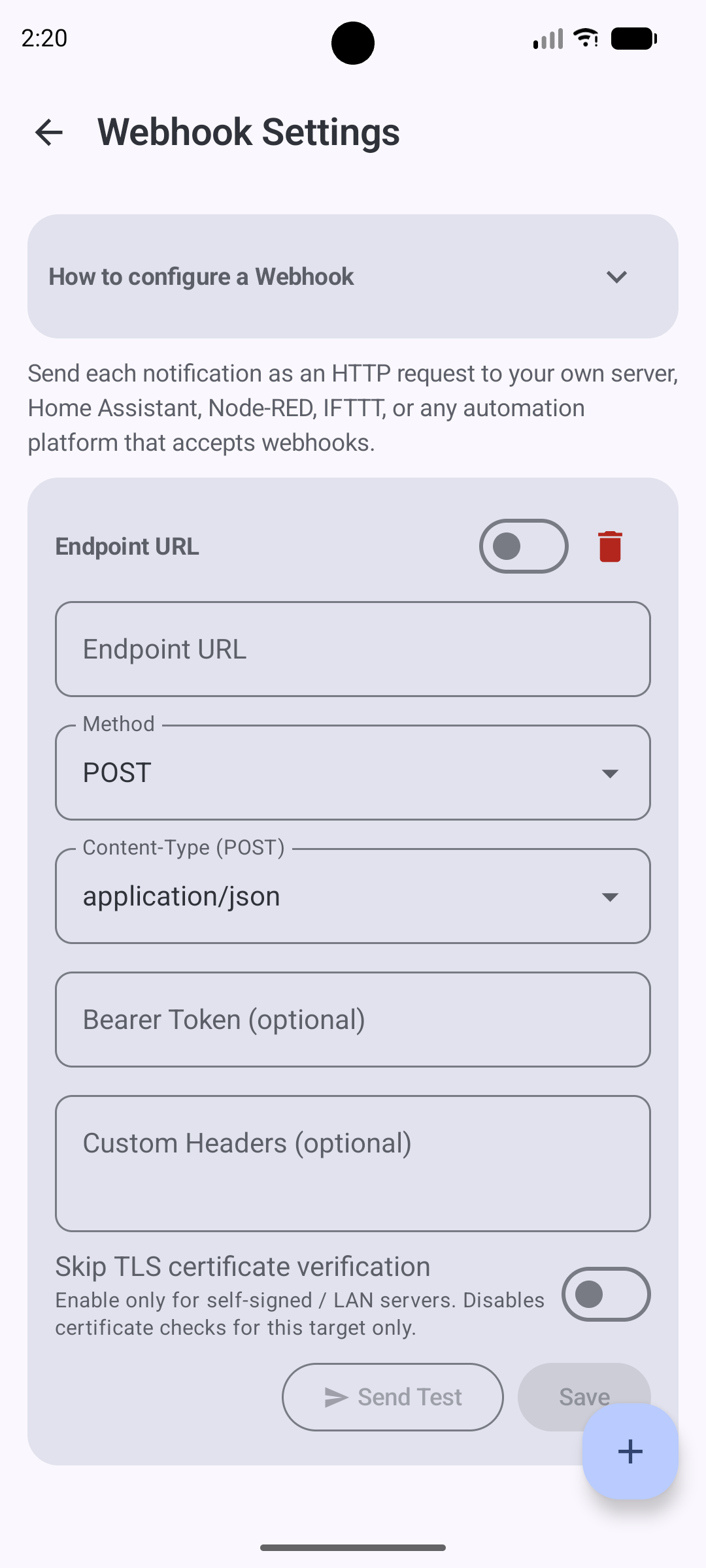
URL, method, optional Bearer token, and per-target TLS-skip. (Screenshot shows an older preset row; v1.4.0 ships the 8 presets listed above, and v1.4.1 makes each preset its own independent channel.)
6. Forwarding scope
The home "Forwarding scope" section centrally manages "what to forward".
6.1 Event-type toggles
Include SMS
Off by default. When you turn it on (and confirm the disclosure dialog), SMS received on this phone is forwarded (body dedupe, see §8, never duplicated).
Include missed calls
Off by default. When you turn it on (and confirm the disclosure dialog), missed calls forward via notifications (no phone permission). When off, missed calls never leak into the normal notification path.
6.2 App filtering mode
Forward all (ALL)
All app notifications are forwarded (more noise).
Allowlist (WHITELIST)
Only apps you add and enable are forwarded (recommended for two-phone users, no 3 a.m. music / navigation buzz).
Blocklist (BLACKLIST)
All apps except those you block are forwarded.
6.3 Manage apps
- Tap "Manage apps" to open the AppFilter list and add/remove entries or toggle individual ones.
- The filtering mode itself is switched on the home screen (the AppFilter page shows it read-only and prompts you to change it on the home screen).
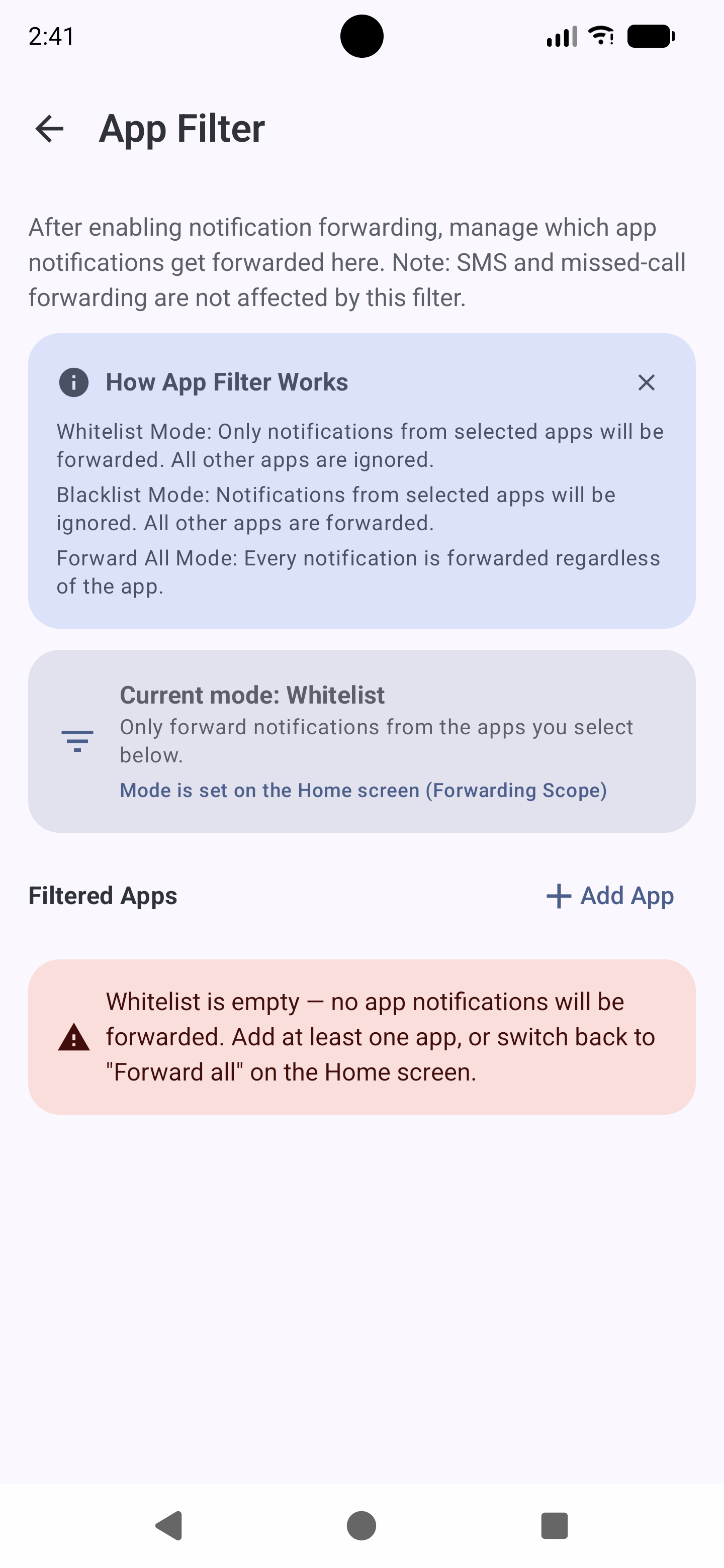
Add / remove apps and toggle each one individually.
7. General settings (top-right ⋮)
Language
8 UI languages are supported, auto-switching with the system language, and also manually switchable in-app via "General settings → Language":
简体中文繁體中文English日本語한국어EspañolFrançaisالعربية
(Arabic is RTL; the UI mirrors automatically.)
Content length limits
- Max title length and Max body length: each 1–5000, truncated if exceeded.
- Purpose: protect channels from being interrupted by over-long content, especially for long web-notification / long SMS forwarding.
About
Shows a short description of the app. The About section is shown directly on the settings page (no dialog popup).
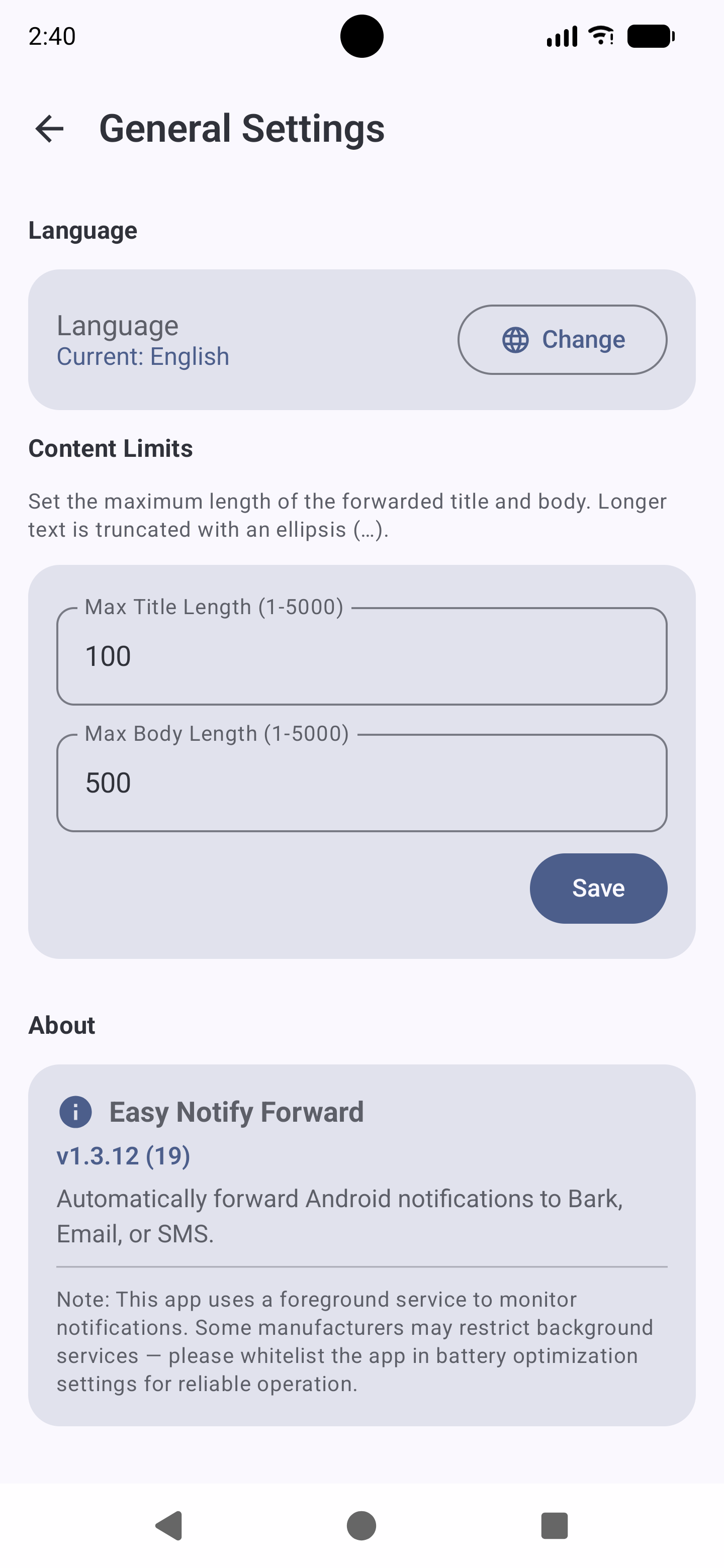
Language, content-length limits, and About (top-right ⋮).
8. How it works & battery design
In one sentence
NotifyForward runs a foreground notification-listener service locally (NotificationListenerService) that reads local notifications and incoming SMS. Its internal dispatch hub ForwardManager decides, then concurrently sends to your configured Bark / Email / Webhook channels and writes a local history. No middle server, no account.
Battery design
- Background forwarding decisions run entirely from memory cache (master switch + settings driven by DataStore Flow, no disk reads, no Keystore decryption) — zero I/O, zero decryption.
- App names use an LRU cache (cap 256, avoiding PackageManager lookups per notification), markedly lowering CPU and battery use.
- The foreground service stays resident but is very lightweight; measured standby overhead is negligible.
Dedupe mechanism
| Type | Dedupe method | Notes |
|---|---|---|
| Regular notifications | 5-second content window | Same app + title + body forwards only once within 5 seconds (chat apps often send twice). Different messages forward separately. |
| SMS | Body dedupe | Captured from your SMS app's notification via Notification Access, deduplicated by message-body signature, so each SMS forwards exactly once. |
| Missed calls | Notification-key dedupe (30-min TTL) | Deduped by system notification key; different calls forward separately even with identical text (the "same-text swallowing" bug is fixed). A reconnect scan won't re-forward the same still-present missed call. |
9. History & test forward
Forward log
Every successful / failed forward is written to local history, including source, title, body, and per-channel result (success / failure reason). Tap the "History" card on the home screen to view; tap an entry for details.
Cumulative forward count
The home screen shows the total forward count; tap the reset icon next to it to zero it (count only, history unaffected).
Test forward
The home "Test forward" button sends a sample message, bypassing the master switch, event types, and all filters, for the sole purpose of verifying the channel receives it. If the test arrives but real forwards don't, it's a filter / detection issue; otherwise it's a channel-config issue.
10. Device troubleshooting (check here first if forwarding fails)
Background limits on Chinese ROMs are the main culprit for dropped forwards. Handle by brand:
OPPO / realme / OnePlus (ColorOS)
NotifyForward fixed the ColorOS dialer missed-call swallowing. Still ensure: Notification Access on + battery optimization off + Phone Manager → Permissions & privacy → Auto-launch → allow NotifyForward to auto-start.
Xiaomi (MIUI / HyperOS)
Settings → Battery & performance → App battery saver → NotifyForward → No restrictions; also allow auto-start and floating-window as needed.
Huawei / Honor (EMUI / MagicOS)
Phone Manager → App launch → NotifyForward → Manage manually, allow auto-start, linked startup, background activity; set battery optimization to "Don't allow".
Samsung (One UI)
Device care → Battery → Background usage limits → remove NotifyForward from "Deep sleeping apps". Notification Access is at Settings → Notifications → Advanced settings → Notification access.
General: service killed by system
Symptom: forwarding stops completely after screen lock. Fix: ① turn off battery optimization; ② allow auto-start / background activity; ③ add the app to the system "Unrestricted" list; ④ some Chinese ROMs require locking the app in recent tasks (pull down the card to lock).
Top-down troubleshooting checklist
- Is the home status card green "Service running"? → No: grant Notification Access / tap "Start service".
- Is battery optimization off? → No: open Settings → Tools → "Battery optimization".
- Is a channel added and enabled? → No: go to that channel's page and add + enable it.
- Are the event-type toggles on (SMS / missed calls)? → They are OFF by default — turn them on and confirm the disclosure dialog if you want those events forwarded.
- Is app filtering wrongly dropping them? → In allowlist mode confirm the source app is added and enabled; in blocklist mode confirm it wasn't wrongly added.
- Still failing: use the home "Test forward" to verify the channel itself receives it; if it does, it's a filter / detection issue, otherwise a channel-config issue.
11. FAQ
Do I need two phones?
Not necessarily. It's commonly used by two-phone users to aggregate a spare phone's messages; it also works for forwarding a single phone's notifications to email / another device for backup.
Will my messages be uploaded to a server?
No. Runs entirely locally, no server, no account.
Will forwarding duplicate?
No. Regular notifications have a 5-second content dedupe; SMS is deduplicated by message body; missed calls dedupe by notification key (different calls forward separately even with identical text — the "same-text swallowing" bug is fixed).
Why don't I receive missed-call forwards?
Check in order: ① "Include missed calls" is on (it's OFF by default — turn it on and confirm the disclosure dialog); ② Notification Access is granted; ③ battery optimization is off; ④ whether that model's dialer package is recognized (see §10; mainstream OEMs are covered, with the device default dialer as fallback).
Does SMS forwarding cost money?
No — incoming SMS is never sent as an SMS. It is read from the SMS app's notification and forwarded over your Bark / Email / Webhook channels, so no carrier fees apply. Bark / Email / Webhook go over the network.
Can it forward WeChat / QQ content?
Yes, as long as that app's notifications are enabled and not filtered. Note some chat content may be collapsed by the system; forwarding uses the visible notification text.
How do I migrate config after changing phones?
NotifyForward stores config in the local DataStore with no cloud sync. After switching, reconfigure channels and filters on the new phone (screenshot the old settings recommended).
The Bark notification carried a weird unopenable link?
The app previously attached an iOS-unopenable deep link; the source app name is now clearly shown via the [App name] title prefix and grouping, with no extra link.
Why are SMS and missed-call forwarding off by default?
For privacy. SMS bodies and caller info are sensitive, so the app keeps those channels disabled until you explicitly enable them — and shows a short disclosure dialog the first time you do. Notification forwarding (non-sensitive) works out of the box.
12. Privacy & security
Local-first
No server, no account, no cloud upload. Your messages only go to the Bark / Email / Webhook destinations you configure.
Key encryption
Bark keys and email passwords are stored in Android Keystore, AES-256-GCM encrypted; non-root devices can't export them in plaintext.
Config privacy
Forwarding settings and filter lists are stored in DataStore (the app's private sandbox); no telemetry / analytics is collected.
- Network egress: only requests to your configured destinations; no telemetry / analytics collected.
- Minimal permissions: missed calls need no call permission; incoming SMS is captured via Notification Access, so no SMS permission is requested.
- Consent gate: a first-launch privacy-policy gate and OFF-by-default SMS / missed-call channels keep you in control of sensitive data.
- Full privacy policy: privacy-policy.html.
13. Appendix: permission list
| Permission | Purpose | When needed |
|---|---|---|
| Notification Access (Notification Listener) | Read notifications, detect missed calls | Always (core) |
| RECEIVE_SMS | Not requested. SMS captured from the SMS app's notification via Notification access | Not needed |
| Network (INTERNET) | Request Bark / Email | When using Bark / Email channels |
| Foreground service (Special Use) | Resident listener, guaranteeing real-time forwarding | While the service runs |