From granting permissions to configuring channels, from forwarding scope to device troubleshooting — step by step, so "never miss it" really holds. Still stuck? See the FAQ and troubleshooting checklist at the bottom.
On first launch you'll review and accept the privacy policy, then the app guides you through three steps.
On the home screen, the red "Permission required" bar → tap "Grant permission" → toggle on NotifyForward in the system list. Forwarding notifications and detecting missed calls both depend on it.
Settings → Tools → "Battery optimization" → set NotifyForward to "Unrestricted". Otherwise the background may freeze, delaying or stopping forwarding.
Tap any of the Bark / Email / Webhook cards, fill it in and flip the switch; when the home screen shows "Service running" it's live. Tap "Test forward" to verify receipt.
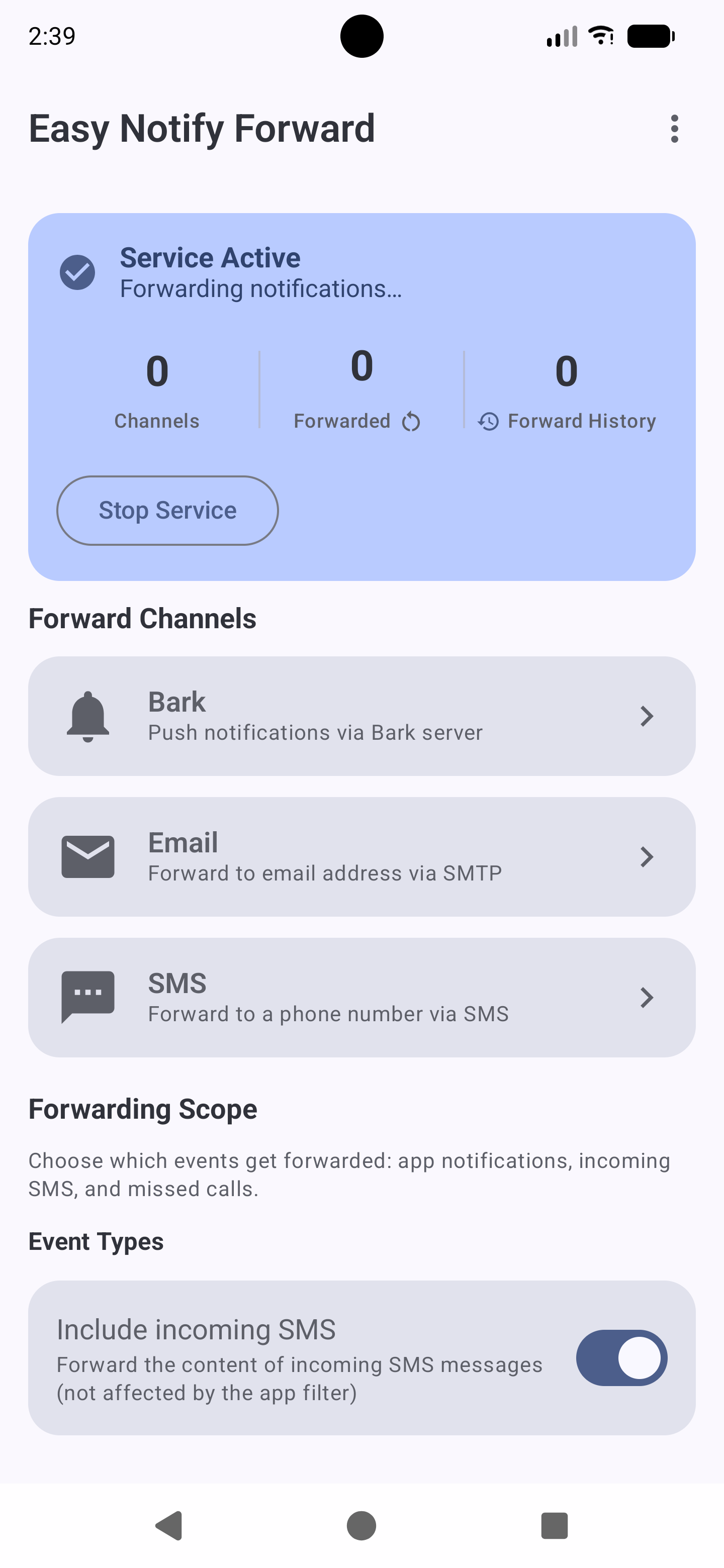
Each channel can have multiple destinations, each with its own switch. With no usable destination, that event is dropped.
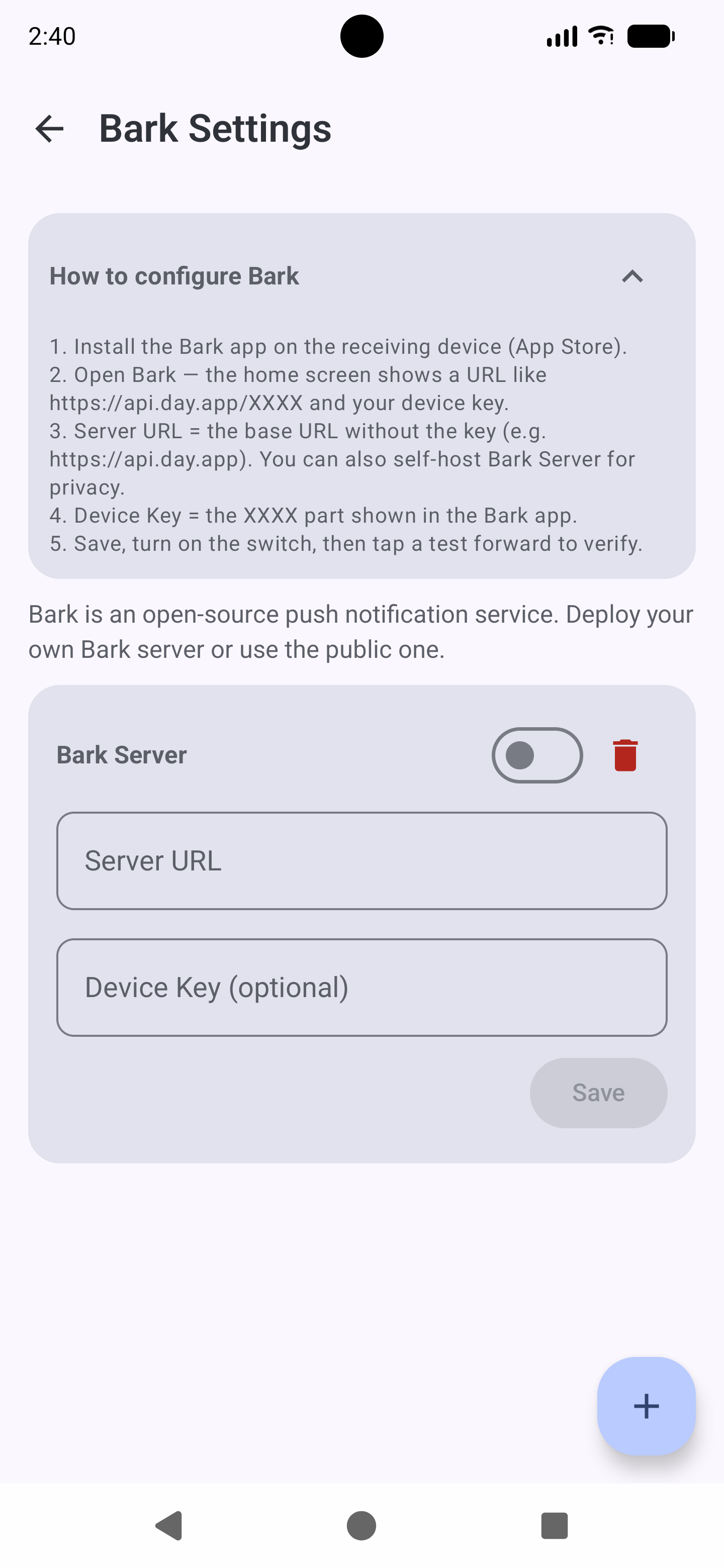
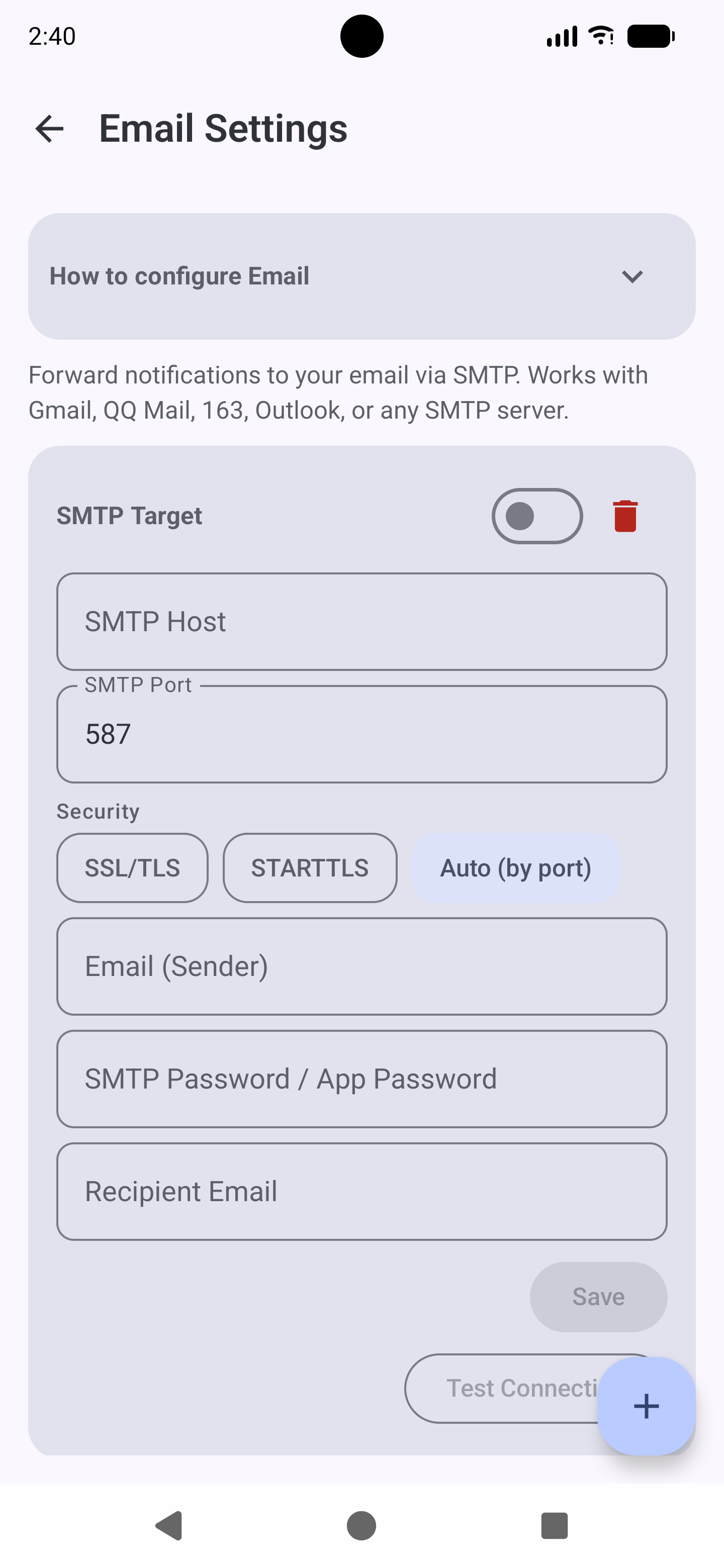
https://api.day.app or a self-hosted address.http:// or https:// address.| Provider | SMTP host | Port | Security |
|---|---|---|---|
| QQ Mail | smtp.qq.com | 465 / 587 | SSL / STARTTLS |
| 163 Mail | smtp.163.com | 465 / 994 | SSL |
| Gmail | smtp.gmail.com | 465 / 587 | SSL / STARTTLS |
| Outlook | smtp.office365.com | 587 | STARTTLS |
NotifyForward fixed ColorOS dialer missed-call swallowing. Still ensure: Notification Access on + battery optimization off + Phone Manager allows auto-start.
Settings → Battery & performance → App battery saver → NotifyForward → No restrictions; also allow auto-start.
Add NotifyForward to "Unrestricted / Manual manage", allow auto-start and background activity; remove it from the deep-sleep list.
A first-launch consent gate and sensitive-defaults keep you in control.
Nothing is uploaded to us. Messages only go to the Bark / Email / Webhook destinations you configure.
Bark keys and email passwords live in the Android Keystore (AES-256-GCM); non-root devices can't read them in plaintext.
SMS & missed-call forwarding are OFF until you opt in; the app asks for consent before enabling either.
Not necessarily. It's commonly used by two-phone users to aggregate a spare phone's messages, and also works for forwarding a single phone's notifications to email / another device for backup.
No. Runs entirely locally, no server, no account.
By design, for privacy. SMS content and caller info are sensitive, so the app keeps those channels disabled until you explicitly turn them on. The first time you do, a short disclosure dialog explains what is accessed, and you must confirm. Notification forwarding (non-sensitive) is the only thing enabled out of the box.
No. Regular notifications have a 5-second content dedupe; SMS is deduplicated by message body; missed calls dedupe by notification key (different calls forward separately even with identical text — the "same-text swallowing" bug is fixed).
Check in order: ① "Include missed calls" is on; ② Notification Access is granted; ③ battery optimization is off; ④ whether that model's dialer package is recognized (see device troubleshooting above; mainstream OEMs are covered, with the device default dialer as fallback).
No — incoming SMS is never sent as an SMS. It is read from the SMS app's notification and forwarded over your Bark / Email / Webhook channels, so no carrier fees apply. Bark / Email / Webhook go over the network.
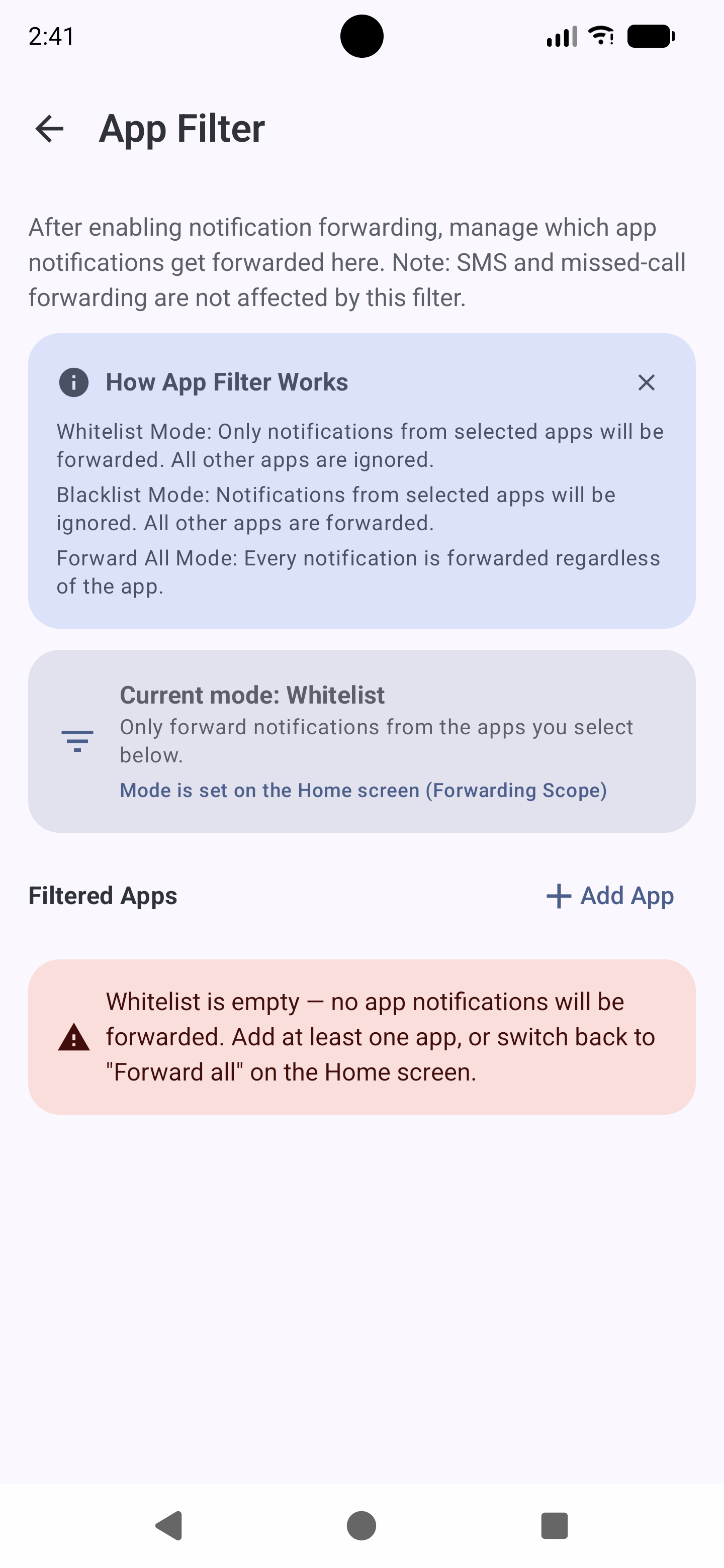
Yes, as long as that app's notifications are enabled and not filtered. Forwarding uses the visible notification text.
NotifyForward stores config locally with no cloud sync. After switching, reconfigure channels and filters on the new phone (screenshot the old settings recommended).